IoT
Wi-Fi, HTTP and MQTT on the ESP32 with MicroPython
Wi-Fi with network.WLAN, HTTP with requests and MQTT with umqtt.simple on the ESP32: connection states, board errors and testing it all in the simulator.
By Prof. Rodrigo Faustino · Published on · updated on · 12 min read
Metrics for this article
- Words
- 2,307
- Characters
- 14,013
- Reading time
- ~12 min
Until now, the ESP32 has talked to the world through its pins: LEDs, buttons, sensors and displays. What sets it apart from many microcontroller boards, however, is the Wi-Fi radio built into the chip. With it, the board fetches the weather forecast from the internet, sends sensor readings to a dashboard, receives commands from a phone. It is the basis of what is called the Internet of Things (IoT).
This article walks through the three layers of that path in MicroPython: Wi-Fi with the network module, HTTP requests with the requests module and MQTT messages with umqtt.simple. In each one, the board behaviors that catch beginners — the connection that is not instant, the error codes, the ADC2 that stops working — and how PyPlaca simulates all of it safely, without the board having to leave the browser.
Wi-Fi as a network interface
In MicroPython, Wi-Fi is the WLAN class of the network module. The ESP32 has two Wi-Fi interfaces:
- STA (station): the board connects to a router, like a phone. It is the mode of almost every project;
- AP (access point): the board creates its own network, and other devices connect to it.
network.WLAN(network.STA_IF) returns the station interface — and always the same object, no matter how many times it is called. Before anything else, the interface needs to be activated with active(True), which turns the radio on. Only then does connect() work; called before, it raises an OSError with the reason as text (such as Wifi Not Started).
import network
import time

wlan = network.WLAN(network.STA_IF)
wlan.active(True)
wlan.connect('laboratorio', 'esp32lab')

inicio = time.ticks_ms()
while not wlan.isconnected():
    if time.ticks_diff(time.ticks_ms(), inicio) > 10000:
        print('did not connect; status =', wlan.status())
        break
    time.sleep_ms(100)
else:
print('connected! IP:', wlan.ifconfig()[0])In PyPlaca, the simulated board "sees" a network called laboratorio, with the password esp32lab. The bench's Wi-Fi button shows the connection state and lets the teacher change that network's name and password. Open the example and run it: after a moment, the Serial shows the IP that the lab "router" gave the board.
The connection is not instant
The most important point of the example is the waiting loop. connect() returns right away: it only asks the radio's system to start connecting. The real connection — finding the network, negotiating the password, receiving an IP through DHCP — happens afterward, in the background. A program that calls connect() and immediately tries to use the network fails.
That is why every Wi-Fi program waits for isconnected() to become true. And it waits with a time limit: if the password is wrong or the network does not exist, a loop with no limit would be stuck forever. The example uses ticks_diff, the same technique as in the article Programming without freezing, and the else of the while only runs if the loop ends without a break.
In the simulator, the connection takes about 1.5 s of virtual time. It is a reference value chosen for the simulation: the real time depends on the router and is still to be measured on a lab board.
The connection states
wlan.status() says where the connection stands, with MicroPython's constants (the numbers are ESP-IDF's, Espressif's system underneath MicroPython):
| Constant | Value | Meaning |
|---|---|---|
network.STAT_IDLE | 1000 | idle, not trying to connect |
network.STAT_CONNECTING | 1001 | connecting |
network.STAT_GOT_IP | 1010 | connected and with an IP |
network.STAT_NO_AP_FOUND | 201 | the network was not found |
network.STAT_WRONG_PASSWORD | 202 | wrong password |
network.STAT_CONNECT_FAIL | 203 | failed for another reason |
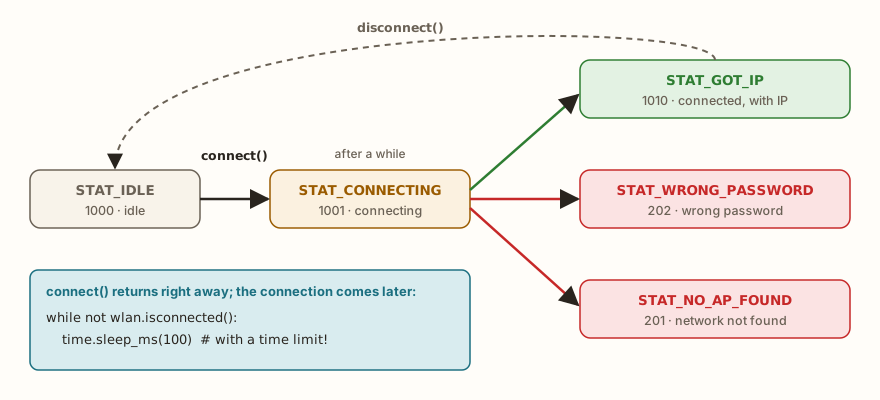
wlan.status() states in the ESP32's MicroPython: connect() returns right away, and the connection happens later — which is why the program waits for STAT_GOT_IP.Two details of real MicroPython that the simulator reproduces: the reason for a failure is not cleared just by calling connect() again; and after disconnect() the status goes back to STAT_IDLE. Change the example's password to a wrong one and run again to see the 202.
Scanning for networks
wlan.scan() lists the networks in range. Each item is a tuple with the name (as bytes), the router's address, the channel, the signal strength (RSSI, in dBm — the closer to zero, the better), the security type and whether the network is hidden. The list goes from the strongest signal to the weakest, and scan() blocks the program while it searches.
import network

wlan = network.WLAN(network.STA_IF)
wlan.active(True)
for ssid, bssid, canal, rssi, seguranca, oculta in wlan.scan():
print(ssid.decode(), 'channel', canal, 'signal', rssi, 'dBm')ADC2 stops working
A side effect of Wi-Fi catches many people: with the radio on, the ADC2 pins (GPIOs 0, 2, 4, 12 to 15 and 25 to 27) can no longer make analog readings, because the Wi-Fi system holds that converter for itself. The reading gives OSError: [Errno 116] ETIMEDOUT, and the simulator shows the warning adc2-wifi. The rule, explained in the article on the ESP32 ADC, is simple: projects with Wi-Fi read analog sensors on ADC1, GPIOs 32 to 39.
The AI that remembers your life and lives on your computer
- Long-term memory with the source of every answer
- Works offline: your data stays on your PC
- Reads PDFs, slides, photos and meeting recordings
Essential plan free forever
HTTP with requests
With the board on the network, the most common way to fetch data is HTTP, the same protocol as web pages. The MicroPython firmware for the ESP32 includes the requests module (also importable as urequests), from the official micropython-lib library. The simulator runs the same original file, without adaptations, on top of a simulated network stack.
import network
import time
import requests

wlan = network.WLAN(network.STA_IF)
wlan.active(True)
wlan.connect('laboratorio', 'esp32lab')
while not wlan.isconnected():
    time.sleep_ms(100)

r = requests.get('http://api.laboratorio.test/clima')
print('status:', r.status_code)
dados = r.json()
print('temperature:', dados['temperatura'], '°C')
print('humidity:', dados['umidade'], '%')
r.close()The response has status_code (200 is "it worked"), text (the body as text), content (as bytes) and json(), which turns the body into a dictionary when the server sends JSON. The close() at the end gives the connection back: the ESP32 has little memory and few sockets, and a program that makes many requests without closing ends up running out.
To send data, requests.post() accepts a dictionary in the json= argument:
r = requests.post('http://api.laboratorio.test/leituras', json={'temperatura': 23.4})
print(r.status_code)   # 201: created
r.close()What "the internet" is in the simulator
The student's code cannot go fetching any internet address from the browser — that would be a risk for the student and for the platform. So the simulator's network works like this:
- ready-made responses (mocks): addresses such as
api.laboratorio.testanswer with fixed data, without leaving the browser. Each request appears on a short line in the Serial, with the method, the address and the status; - allowed list: only a few domains approved by the platform are really fetched, and only when the activity allows it;
- everything else: the name is not found, as on a network with no internet. The board's
getaddrinforeturnsOSError: -202and the simulator shows the warning rede-fora-da-lista.
The same -202 appears if the program tries to use a name before Wi-Fi connects — it is the real board saying "I could not resolve that name". If the server takes longer than the socket timeout, the error is OSError: [Errno 116] ETIMEDOUT.
HTTP and programs that do not freeze
A requests.get() blocks the program until the response arrives. In a project that also blinks LEDs and reads buttons, that means everything stops during the request. Two practices help: making requests rarely (every minute, not on every pass of the loop), controlled by ticks_diff, and preferring MQTT when the board needs to exchange messages often.
MQTT: messages by topic
HTTP works on the "question and answer" model: the board asks, the server answers. For IoT, this has a problem — the server cannot notify the board of anything; it would have to ask all the time. MQTT solves this with another model, publish and subscribe:
- there is a central server, the broker;
- each device connects to the broker and keeps the connection open;
- whoever wants to send something publishes a message to a topic, a name like
lab/sala1/temperatura; - whoever wants to receive subscribes to the topic, and the broker delivers the message to all subscribers.
Nobody talks directly to anybody. The board that publishes the temperature does not know whether the reader is a phone, a dashboard or ten other devices — and does not need to know.

Topics and wildcards
Topics are hierarchical, separated by /. When subscribing, you can use wildcards:
+replaces one level:lab/+/temperaturareceiveslab/sala1/temperaturaandlab/sala2/temperatura;#replaces all the following levels:lab/#receives everything that starts withlab/.
When publishing, wildcards are not allowed. A message can be retained (retain=True): the broker keeps the topic's last message and delivers it to whoever subscribes later — useful for "the LED's current state", which a freshly opened dashboard needs to know.
umqtt.simple in practice
The ESP32 firmware includes the umqtt.simple client, also from micropython-lib, and the simulator uses the original. The example below connects to Wi-Fi, subscribes to the topic lab/led to receive commands and publishes a counter on lab/contador every 2 seconds — without freezing, with check_msg() and ticks_diff:
import network
import time
from machine import Pin
from umqtt.simple import MQTTClient

wlan = network.WLAN(network.STA_IF)
wlan.active(True)
wlan.connect('laboratorio', 'esp32lab')
while not wlan.isconnected():
    time.sleep_ms(100)

led = Pin(2, Pin.OUT)

def chegou(topico, msg):
    print('arrived on', topico, ':', msg)
    if msg == b'liga':
        led.on()
    elif msg == b'desliga':
        led.off()

cliente = MQTTClient('esp32-aluno', 'broker.laboratorio.test')
cliente.set_callback(chegou)
cliente.connect()
cliente.subscribe(b'lab/led')

ultimo = time.ticks_ms()
n = 0
while n < 15:
    cliente.check_msg()                      # checks whether a message arrived, without waiting
    if time.ticks_diff(time.ticks_ms(), ultimo) >= 2000:
        ultimo = time.ticks_add(ultimo, 2000)
        n += 1
        cliente.publish(b'lab/contador', str(n).encode())
    time.sleep_ms(50)
cliente.disconnect()The steps are always the same: create the MQTTClient with a unique identifier and the broker's address, set_callback() with the function that receives the messages, connect(), subscribe() and, in the loop, check_msg(). The callback receives the topic and the message as bytes — which is why the comparison is with b'liga', and not with 'liga'.
check_msg() is the non-blocking version: if nothing arrived, it returns right away. There is also wait_msg(), which stays stopped until a message arrives — handy in a program that only waits for commands, disastrous in one that also needs to do other things.
The simulator's broker
In PyPlaca, the broker runs in the browser itself and speaks real MQTT 3.1.1, byte by byte: connection, publishing with QoS 0, 1 and 2, subscriptions with wildcards, retained messages, persistent session and "last will". The address broker.laboratorio.test points to it, and so do the public brokers that tutorials use — test.mosquitto.org, broker.hivemq.com, broker.emqx.io and mqtt.eclipseprojects.io: no internet broker is contacted. That way, a program copied from a tutorial runs the same, and no student message ends up on a public server.
The bench's MQTT tab shows the connected devices, what each one subscribed to, the topics with their last message and the recent messages. It also has the Publish as another device form: run the example, publish liga on the topic lab/led and watch the board's blue LED light up.

QoS, Keep Alive and dropped connections
Three MQTT concepts that show up right in the first projects:
- QoS (quality of service): 0 is "send and forget"; 1 guarantees the message arrives at least once (the broker acknowledges); 2 guarantees exactly once, with more back and forth. For sensor readings, QoS 0 is enough;
- Keep Alive: the client promises to send some packet every so many seconds. If one and a half times that time goes by with no news, the broker considers the connection dead and drops it;
- last will: a message that the client arranges when connecting and that the broker publishes if it drops without saying goodbye — the classic way for a dashboard to show "board offline".
When the connection drops, socket reads start to fail. umqtt.simple does not try to reconnect; for that there is umqtt.robust, also in the firmware, which reconnects by itself.
Putting sensors, network and time together
A complete IoT project combines everything the series showed: reading a sensor on ADC1 or with the DHT22, organizing the tasks with ticks_diff so nothing freezes, publishing the readings over MQTT from time to time and reacting to commands that arrive through check_msg(). A typical skeleton:
- connect to Wi-Fi with a time limit and a clear message if it fails;
- connect to the broker and subscribe to the command topics;
- in the loop:
check_msg(), read the sensors at their own pace, publish at their own pace, short pause; - handle
OSErroron the network (Wi-Fi dropped, broker down) without bringing down the rest of the program.
Before taking it to the real board, swap the lab broker for the address of your school's or your project's broker — the rest of the code stays the same. And remember that, on a real board, the network is real: passwords do not go into public repositories, and topics with unique names keep your board from receiving your classmate's board's messages.
From the syllabus to a planned semester
- Teaching plan and calendar built automatically
- Class diary ready to paste into SIGA
- Slides and exercise lists with answer keys
Free Community edition · Windows
Diagnosing network problems
When an IoT program does not work, it is worth following the layers from the bottom up, as on the bench:
- did Wi-Fi connect? Print
wlan.status(): 201 is network not found, 202 is wrong password. In the simulator, the bench's Wi-Fi button shows the state and the IP; - does the server name resolve? An
OSError: -202before any response indicates the name was not found — Wi-Fi still disconnected, a misspelled name or, in the simulator, an address outside the activity's list; - did the server respond? Look at the HTTP
status_codebefore callingjson(). A 404 has a body, but not the one you expected; - on MQTT, did the connection get accepted?
connect()raises an error if the broker refuses (wrong user and password, for example); - do the messages arrive? Check that the subscribed topic is exactly the published one — uppercase, slashes and spaces count — and that the loop calls
check_msg()often; - the callback receives bytes: comparing
msg == 'liga'(text) withb'liga'(bytes) is false, and the command seems ignored.
In the simulator, each HTTP request appears in the Serial and in the simulated network window, and the MQTT tab shows who is connected and what was published. It is the equivalent of having a network analyzer next to the bench.
Where to go next
This article closes the basic ESP32 series, and the platform's last three tracks are its direct continuation. The Wi-Fi and HTTP track redoes the first half of this text with automatically graded lessons and challenges: connecting with a time limit, understanding status(), fetching and interpreting JSON, sending readings with POST and not waiting forever for a slow server. The MQTT track practices publishing and subscribing, topics and wildcards, receiving commands without freezing with check_msg(), Keep Alive and last will. And the final project brings it all together in a weather station: DHT22, OLED, configuration over HTTP and readings on MQTT.
After it come five in-depth articles: ESP-NOW, for boards to talk without a router; a web server on the ESP32, for the board to serve its own page; storing data on the ESP32; batteries and deep sleep; and AI with the ESP32, which includes integrating the board with a language model.
To choose the right pins when the project leaves the simulator and goes to the bench, see the ESP32 DevKit V1 datasheet and the pin map — and remember ADC1 for analog sensors.
To practice in PyPlaca
Tracks
- Track 8: Wi-Fi and HTTP
- Track 9: MQTT: publish and subscribe
- Track 10: Final project: IoT weather station
Lessons
- Wi-Fi: the board joins the network
- HTTP: the board makes a request, the server answers
- JSON: data the program understands
- MQTT: publish and subscribe
- check_msg(): receiving without freezing
- The ADC: from voltage to number