Web server
Web Server on the ESP32: Controlling the Board from the Browser
The ESP32 as an HTTP server with sockets in MicroPython: station and access point, request and response text, routes, a sensor page and asyncio.
By Prof. Rodrigo Faustino · Updated on · 12 min read
Metrics for this article
- Words
- 2,258
- Characters
- 13,347
- Reading time
- ~12 min
In all the network projects seen so far, the ESP32 was the client: it asks for a page, sends a reading or publishes on MQTT, and a server somewhere answers. This article reverses the roles. The ESP32 becomes the server: it sits waiting, and the one asking is your phone's browser. You type the board's address, a page appears with the room temperature and two buttons, and tapping one of them turns on the LED.
It is one of the best-loved projects for people starting with the ESP32, because it brings everything together: Wi-Fi, pins, sensors and an interface that anyone uses without installing anything. It is also a great way to understand how the web works inside, because in MicroPython there is no magic: the request arrives as text, the program reads that text and writes other text back.
Client and server
On the web, the two ends have different roles:
- the client opens the connection and asks for something. The browser is a client; the ESP32 using
requestsis too; - the server waits for connections on a port and answers each request. The default port of the unencrypted web is 80: when you type
http://192.168.4.1/, the browser connects to port 80 of that address.
In MicroPython, both ends use the socket module. The client calls connect(). The server calls three functions, in order: bind(), which attaches the socket to an address and a port; listen(), which says "you can start accepting"; and accept(), which waits for the next connection and returns a new socket just for talking to that client.
In PyPlaca's simulator, the socket is still client-only:
bind(),listen()andaccept()raise aNotImplementedErrorexplaining that the server is not simulated yet. That is why this article's complete server is meant to be taken to the real board. The examples with the "Open in the simulator" button deal with the parts that do not depend on the radio — the access point, reading the request, the routes and building the page —, and those are exactly the parts where the most common mistakes are.
The AI that remembers your life and lives on your computer
- Long-term memory with the source of every answer
- Works offline: your data stays on your PC
- Reads PDFs, slides, photos and meeting recordings
Essential plan free forever
How the browser reaches the board
Before the server, the browser needs to reach the ESP32. There are two ways, and the choice changes the address you type.
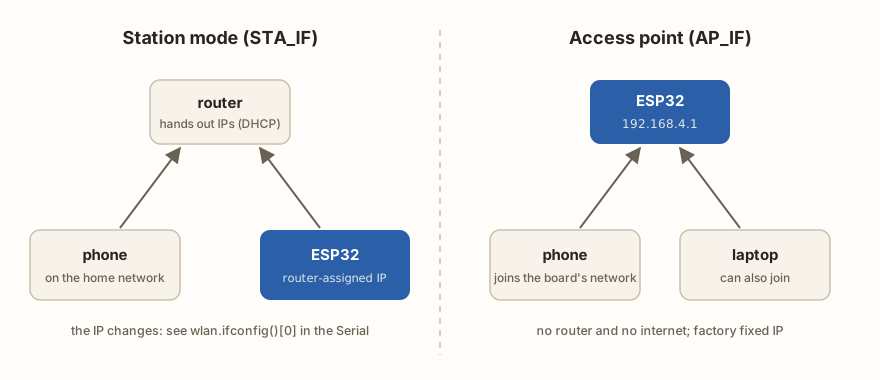
Station mode (network.STA_IF): the ESP32 joins the home or lab Wi-Fi network, like any phone. The router gives it an IP address, and the phone, on the same network, accesses that IP. It is the mode from the article Wi-Fi, HTTP and MQTT. The catch is that the IP may change from one day to the next. That is why the program should print wlan.ifconfig()[0] to the Serial as soon as it connects: it is the address to type in the browser.
Access point (network.AP_IF): the ESP32 itself creates a Wi-Fi network, and the phone connects to it. It needs no router, which is great for taking the project to a fair or for a device's initial setup. The board's address in this mode comes from the factory in ESP-IDF, the system on which the ESP32's MicroPython runs: 192.168.4.1. The example below creates the network in the simulator and shows the configuration.
import network

ap = network.WLAN(network.AP_IF)
ap.active(True)
ap.config(ssid='PyPlaca-LED', key='laboratorio123', security=network.AUTH_WPA2_PSK)

ip, mascara, roteador, dns = ap.ifconfig()
print('network:', ap.config('ssid'))
print('security:', ap.config('security'), '(3 = WPA2 with password)')
print('open in the browser: http://%s/' % ip)Notice the security=network.AUTH_WPA2_PSK. In the ESP32's MicroPython, key only sets the password; what says the network uses a password is security. Without it, the access point's network can stay open to anyone nearby, and any of them could turn your LED on and off. Use a password of at least 8 characters, which is WPA2's minimum.
An important limitation of access point mode: the phone connected to the board's network is left without internet, because the ESP32 is not connected to anything. Many phones warn about this and try to switch back to another network; accept staying connected.
HTTP is text
When the browser opens http://192.168.4.1/led/on, it connects to port 80 and sends a few lines of text. The ESP32's response is also text. The image shows both.
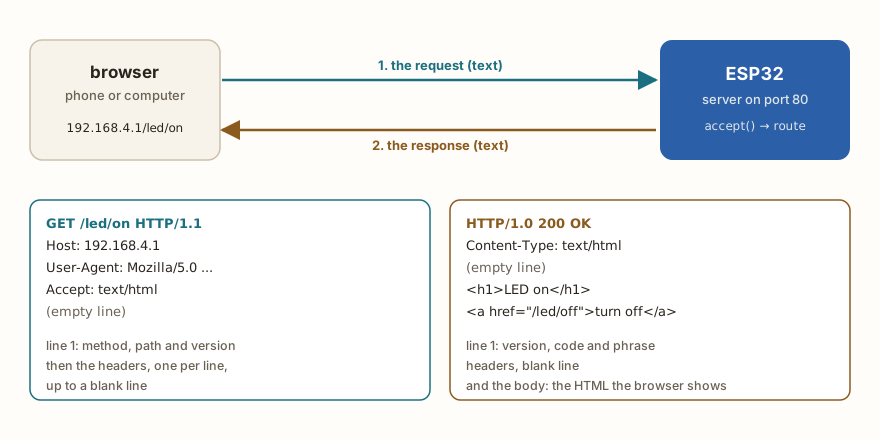
The request starts with the request line: the method (GET to fetch a page), the path (/led/on) and the protocol version. Then come the headers, one per line, in the format Name: value, and the request ends with an empty line. Every line ends with two characters, \r\n. The server needs to read up to that empty line before answering; if it answers in the middle, some browsers complain.
The response follows the same design: a status line with the version, a numeric code and a phrase (HTTP/1.0 200 OK), the headers — the most important is Content-Type, which says whether the body is HTML, JSON or plain text —, an empty line and, finally, the body, which is the page itself. The most used codes are 200 (it worked), 404 (path does not exist), 303 (go to another page) and 500 (server error).
Reading the request and choosing the route
The heart of a server is deciding what to do with each path. This map from paths to actions is called routing. The example below runs in the simulator with hand-written requests, the way they would arrive over the network. It splits the request line, ignores the headers, chooses the route and builds the response — all in functions that are later used with no change at all in the real server.
from machine import Pin

led = Pin(2, Pin.OUT)

def ler_pedido(texto):
    linhas = texto.split('\r\n')
    try:
        metodo, caminho, versao = linhas[0].split(' ')
    except ValueError:
        return None, None                 # strange first line
    return metodo, caminho

def resposta(codigo, corpo, tipo='text/html; charset=utf-8'):
    frases = {200: 'OK', 404: 'Not Found', 400: 'Bad Request'}
    return 'HTTP/1.0 %d %s\r\nContent-Type: %s\r\n\r\n%s' % (codigo, frases[codigo], tipo, corpo)

def ligar():
    led.on()
    return resposta(200, '<h1>LED on</h1>')

def desligar():
    led.off()
    return resposta(200, '<h1>LED off</h1>')

ROTAS = {'/led/on': ligar, '/led/off': desligar}

def atender(texto):
    metodo, caminho = ler_pedido(texto)
    if metodo != 'GET':
        return resposta(400, 'strange request')
    acao = ROTAS.get(caminho)
    if acao is None:
        return resposta(404, '<h1>404: I could not find %s</h1>' % caminho)
    return acao()

for pedido in ['GET /led/on HTTP/1.1\r\nHost: 192.168.4.1\r\n\r\n',
               'GET /favicon.ico HTTP/1.1\r\nHost: 192.168.4.1\r\n\r\n',
               'GET /led/off HTTP/1.1\r\nHost: 192.168.4.1\r\n\r\n',
               'lixo\r\n\r\n']:
    r = atender(pedido)
print(r.split('\r\n')[0], '| LED =', led.value())Three details of this example show up in every real server:
- the browser asks by itself for
/favicon.ico, the tab icon, right after the first page. Without a route for it, the server answers 404, and that is fine — but if the code did not handle unknown paths, that extra request would bring the program down; - the first line may arrive strange: a request cut in the middle, a bot probing ports, a bad network cable. The
trywhen splitting the line turns the problem into a 400 response, instead of a traceback; - the routes dictionary makes the server easy to grow: a new route is a new function and one line in the dictionary.
The complete server on the board
Putting together the access point, the server socket and the functions above, this is a complete server for the real board. It follows the structure of the http_server.py example that ships with the MicroPython code: getaddrinfo, the SO_REUSEADDR option, bind, listen and a loop with accept.
import socket
import network
from machine import Pin

led = Pin(2, Pin.OUT)

ap = network.WLAN(network.AP_IF)
ap.active(True)
ap.config(ssid='PyPlaca-LED', key='laboratorio123', security=network.AUTH_WPA2_PSK)
print('join the PyPlaca-LED network and open http://%s/' % ap.ifconfig()[0])

PAGINA = """<!DOCTYPE html>
<html lang="en"><head><meta charset="utf-8">
<meta name="viewport" content="width=device-width, initial-scale=1">
<title>ESP32 LED</title></head>
<body><h1>The LED is %s</h1>
<p><a href="/led/on">Turn on</a> · <a href="/led/off">Turn off</a></p></body></html>"""

def pagina():
    return PAGINA % ('on' if led.value() else 'off')

s = socket.socket()
s.setsockopt(socket.SOL_SOCKET, socket.SO_REUSEADDR, 1)
s.bind(socket.getaddrinfo('0.0.0.0', 80)[0][-1])
s.listen(2)

while True:
    cliente, endereco = s.accept()          # waits for someone to ask
    try:
        cliente.settimeout(5)               # a slow client does not freeze the board
        primeira = cliente.readline()
        while True:                         # reads and discards the headers
            linha = cliente.readline()
            if not linha or linha == b'\r\n':
                break
        metodo, caminho, _ = primeira.decode().split(' ', 2)
        if caminho == '/led/on':
            led.on()
        elif caminho == '/led/off':
            led.off()
        cliente.write(b'HTTP/1.0 200 OK\r\nContent-Type: text/html; charset=utf-8\r\n\r\n')
        cliente.write(pagina().encode())
    except (OSError, ValueError) as e:
        print('problem with', endereco, e)
    finally:
cliente.close() # always close, or the sockets run outIt is worth understanding each choice:
0.0.0.0means "on all interfaces": the server answers both through the access point and through the home network, if the station is also on;SO_REUSEADDRlets you restart the program without waiting for the port to be released. Without it, a secondbind()right after a Ctrl+C can give an "address in use"OSError;listen(2)is the size of the queue of connections waiting foraccept(). On a microcontroller, short queues are enough;settimeout(5)prevents a client that connects and sends nothing from leaving the board stuck forever inreadline();- the
finally: cliente.close()is the most important. Each open connection takes memory and a socket from the network stack; forgetting to close makes the server stop answering after a few visits.
In this server, the path /led/on turns the LED on and returns the same page. A usability problem: after tapping "Turn on", the address in the browser bar stays /led/on, and a "reload" turns it on again. For actions, the classic solution is to answer 303 with a Location: / header, which sends the browser back to the main page after running the command.
From the syllabus to a planned semester
- Teaching plan and calendar built automatically
- Class diary ready to paste into SIGA
- Slides and exercise lists with answer keys
Free Community edition · Windows
A page with the sensor
What makes the server useful is showing live data. The example runs in the simulator with the DHT22 circuit from the sensors track: it reads the sensor and builds the complete HTML page, with temperature and humidity, exactly as the server would send it. Open it, run it and see the HTML in the Serial.
from machine import Pin
import dht
import time
sensor = dht.DHT22(Pin(4))
def escapar(texto):
return str(texto).replace('&', '&').replace('<', '<').replace('>', '>')
def pagina_sensor(local):
sensor.measure()
t = sensor.temperature()
u = sensor.humidity()
return """<!DOCTYPE html>
<html lang="en"><head><meta charset="utf-8">
<meta http-equiv="refresh" content="10">
<title>Room sensor</title></head>
<body><h1>%s</h1>
<p>Temperature: <strong>%.1f °C</strong></p>
<p>Humidity: <strong>%.1f %%</strong></p>
<p><small>Updates by itself every 10 s.</small></p>
</body></html>""" % (escapar(local), t, u)
time.sleep(2) # the DHT22 needs some time after power-up
print(pagina_sensor('Laboratory <B12>'))Two cautions show up in this example. The first is escapar(): all text that comes from outside (the place name typed into a form, a network name) must have <, > and & replaced before entering the HTML; otherwise, a text like <B12> becomes a tag and vanishes from the page — or, worse, someone injects code into your page. The second is the %%: inside a string formatted with %, the literal percent sign is written doubled.
The tag <meta http-equiv="refresh" content="10"> makes the browser reload the page by itself every 10 seconds. It is the simplest form of "real time". A more elegant way is to serve the data as JSON on a separate path, such as /api/leitura, and let a small JavaScript on the page fetch only the numbers, without reloading everything. The JSON response is the same idea, with Content-Type: application/json and the body made with json.dumps({'t': t, 'u': u}) — the same subject as the JSON lesson.
Forms and URL parameters
To send data to the board — the place name, a temperature limit —, the simplest way is an HTML form with method="get". The browser joins the fields onto the path, after a ?, in the format /config?local=Sala+12&limite=30. The server needs to split those pairs and undo the encoding: a space becomes + and special characters become % followed by two hexadecimal digits.
def decodificar(texto):
    texto = texto.replace('+', ' ')
    partes = texto.split('%')
    saida = partes[0]
    for p in partes[1:]:
        try:
            saida += chr(int(p[:2], 16)) + p[2:]
        except ValueError:
            saida += '%' + p
    return saida

def parametros(caminho):
    if '?' not in caminho:
        return caminho, {}
    rota, consulta = caminho.split('?', 1)
    dados = {}
    for par in consulta.split('&'):
        if '=' in par:
            chave, valor = par.split('=', 1)
            dados[decodificar(chave)] = decodificar(valor)
return rota, dadosThis decoder handles unaccented text well. Accented letters arrive as several %XX in a row (UTF-8 uses two bytes for each accented letter), and putting them together correctly requires working with bytes instead of chr(). For network names and passwords, prefer keeping the form restricted to unaccented letters, numbers and a few signs.
Without freezing: asyncio.start_server
The complete example server has a known problem: while it waits in accept(), the board does nothing else. A button pressed at that moment is ignored, and an LED that should blink stays still. It is the same problem as the Time without freezing track, and has the same solution: asyncio, which comes in the ESP32 firmware.
MicroPython's asyncio has start_server(), which calls a function of yours for each client that connects, while the other tasks keep running:
import asyncio
from machine import Pin

led = Pin(2, Pin.OUT)

async def atender(leitor, escritor):
    primeira = await leitor.readline()
    while True:
        linha = await leitor.readline()
        if not linha or linha == b'\r\n':
            break
    caminho = primeira.decode().split(' ')[1] if primeira else '/'
    if caminho == '/led/on':
        led.on()
    elif caminho == '/led/off':
        led.off()
    escritor.write(b'HTTP/1.0 200 OK\r\nContent-Type: text/plain\r\n\r\n')
    escritor.write(('LED = %d\n' % led.value()).encode())
    await escritor.drain()
    escritor.close()
    await escritor.wait_closed()

async def outra_tarefa():
    while True:
        print('the board is still alive')
        await asyncio.sleep(5)

async def main():
    await asyncio.start_server(atender, '0.0.0.0', 80)
    await outra_tarefa()

asyncio.run(main())start_server() receives the serving function, the address and the port. Each client gets a reader and a writer: the reader has readline() with await, and the writer has write() followed by await drain(), which waits for the data to go out. At the end, close() and wait_closed() close the connection. While one client is being served, the task outra_tarefa keeps printing — and, in a real project, reading sensors and blinking LEDs.
Security: what every server on the board must consider
A server on the board is great for the lab and for home, but it has clear security limits:
- no HTTPS: this article's server uses plain HTTP, so everything travels in the open on the network. Anyone on the same network can read the requests. Do not send important passwords through it;
- no login: anyone who reaches the address controls the board. On the access point, the WPA2 password is your protection; on the home network, any device on the network gets in;
- never expose the board to the internet by opening a port on the router. To control the board remotely, the safe way is the opposite: the board connects to a cloud service, such as an MQTT broker with username and password, and you talk to that service;
- validate everything that arrives: path, parameters and sizes. A very large request can exhaust the memory; an unexpected parameter must not become a dangerous command;
- for actions that change something, such as turning on or opening, a simple token in the path (
/led/on?token=...) already stops someone on the network from triggering the board by accident.
For bigger projects, there is Microdot, a third-party library for MicroPython with Flask-style routes and asyncio support. It saves work, but using the socket directly at least once is the best way to understand what it does for you.
Diagnosing problems
When the browser does not open the board's page, follow the order of the path:
- the network: in station mode, did the Serial show an IP? Is the phone on the same network as the board? Guest networks often isolate devices from one another. In access point mode, is the phone connected to the board's network, and not to 4G?
- the address: type
http://explicitly. Some browsers tryhttps://first, and the simple server does not speak HTTPS; - the program: does the Serial show the connection arriving? If it does and the page does not appear, the problem is in the response — the empty line after the headers is missing, or the
Content-Type; - it stops answering after a few visits: almost always it is a socket that was not closed. Check the
finally.
Where to go next
The Wi-Fi and HTTP track is this article's foundation: the Wi-Fi lesson shows the connection in station mode, and HTTP shows the other side, the board as a client. The DHT22 lesson and the state machine help build a server that reads sensors and reacts to commands without losing control of the rest.
The articles ESP-NOW, about boards talking without a router, and data storage, about keeping the configuration the form receives, are the natural continuation. For the pins, see the ESP32 DevKit V1 datasheet and the DHT22 datasheet.
Sources
- MicroPython v1.29.0 http_server.py example:
getaddrinfo,SO_REUSEADDR,bind,listenand the loop withaccept. - MicroPython ESP32 quick reference: access point with
network.WLAN(network.WLAN.IF_AP)andap.config(ssid=...). - MicroPython v1.29.0 network_wlan.c: the access point's
key/passwordandsecurity/authmode. - ESP-IDF v5.5.2 esp_netif_defaults.c: the access point's 192.168.4.1 address.
- MicroPython asyncio documentation:
start_serverand the read and write streams. - Microdot: web server library for MicroPython.
To practice in PyPlaca
Tracks
- Track 8: Wi-Fi and HTTP
- Track 5: Sensors: temperature, distance and presence
- Track 7: Time without freezing
Lessons
- Wi-Fi: the board joins the network
- HTTP: the board makes a request, the server answers
- JSON: data the program understands
- DHT22: temperature and humidity
- State machine