Non-blocking time
Programming Without Freezing: ticks, Timer and State Machines
Why sleep freezes the ESP32 and how to run several tasks at once in MicroPython with ticks_ms and ticks_diff, machine.Timer and state machines.
By Prof. Rodrigo Faustino · Updated on · 12 min read
Metrics for this article
- Words
- 2,228
- Characters
- 12,730
- Reading time
- ~12 min
The first board programs usually have the same shape: do something, sleep, do another thing, sleep. It works very well as long as the program does just one thing. The day it needs to blink an LED, update a display every two seconds, read a sensor and still handle a button, sleep becomes the biggest enemy: while it sleeps, the ESP32 does nothing else. A button pressed during the sleep simply never existed.
This article shows three tools for writing programs that do not freeze: the board's clock with ticks_ms and ticks_diff, machine.Timer, which calls a function at the right time, and the state machine, the way to organize the program when it grows. None of them requires libraries: everything comes in the ESP32's MicroPython and works the same in the simulator.
The problem: sleep is deaf
Start with a naive program: blink an LED every second and, on every pass, count the presses of a button.
from machine import Pin
import time

led = Pin(18, Pin.OUT)
botao = Pin(4, Pin.IN, Pin.PULL_UP)
apertos = 0

for volta in range(15):
    if botao.value() == 0:
        apertos += 1
        print('press', apertos)
    led.value(not led.value())
time.sleep(1) # the program is STOPPED hereRun it and do three tests, holding the button with the mouse:
- a quick tap, under a second: most of the time nothing appears. The program was inside
sleep(1)and the button was released before it looked again; - hold it for three seconds: three presses appear, one per second. The program does not know it is the same press;
- replace
sleep(1)withsleep(5): the button becomes practically deaf.
Pin.irq, seen in the article on GPIO, solves the specific case of the button — the pin notifies by itself. But it does not solve the general problem: how to do several things over time, each at its own pace, without one's waiting freezing the others?
From the syllabus to a planned semester
- Teaching plan and calendar built automatically
- Class diary ready to paste into SIGA
- Slides and exercise lists with answer keys
Free Community edition · Windows
The clock: ticks_ms and ticks_diff
Think of someone cooking rice and frying an egg at the same time. Nobody spends twenty minutes staring at the rice pot: the person checks the clock now and then — "is it time for the rice yet?" — and, while it is not, looks after the egg.
In the program, the idea is identical. Instead of sleeping, each pass of the loop asks the clock whether the time has already passed:
from machine import Pin
import time

led = Pin(18, Pin.OUT)
botao = Pin(4, Pin.IN, Pin.PULL_UP)

INTERVALO = 500                  # ms between one LED toggle and the next
ultimo = time.ticks_ms()         # when the LED last toggled
anterior = 1                     # previous button reading (1 = released)

while True:
    agora = time.ticks_ms()

    # task 1: blink the LED, without waiting
    if time.ticks_diff(agora, ultimo) >= INTERVALO:
        led.value(not led.value())
        ultimo = time.ticks_add(ultimo, INTERVALO)

    # task 2: handle the button (only the edge: released -> pressed)
    atual = botao.value()
    if anterior == 1 and atual == 0:
        print('pressed at', agora, 'ms')
    anterior = atual

time.sleep_ms(10) # short pause: about 100 passes per secondIf the time has not come yet, the if is false and the loop moves right away to the next task. No line stays stopped for long: the button is read every 10 ms, without missing taps. And the button now counts presses, not "passes with the button pressed": by comparing the current reading with the previous one, the program detects the edge — the change from 1 to 0 —, and holding the button counts only once.
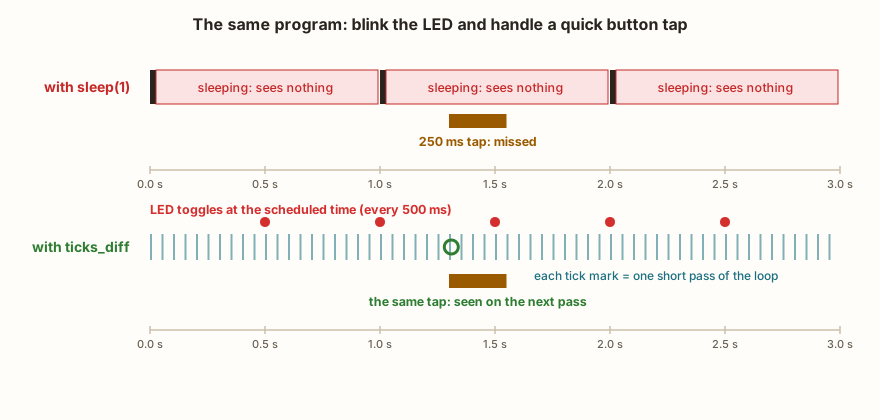
sleep, the program spends its time stopped and misses the quick tap; with ticks_ms/ticks_diff, the loop spins in short passes and each task acts at its own time.Why ticks_diff and not a subtraction
time.ticks_ms() counts milliseconds since the board powered up, but the counter wraps around: after 2^30 ms — a little over twelve days with the board on — it starts again from zero. If the program did agora - ultimo right at that moment, the result would be a huge negative number, the if would never be true again and the LED would stop blinking. A bug that only shows up after twelve days is one of the worst there is.
ticks_diff(end, start) does the right math even when the counter wraps. The rule is absolute: never compare or subtract ticks directly. Use ticks_diff to find out how much time has passed and ticks_add to compute a future time.
Why ticks_add(ultimo, INTERVALO) and not ultimo = agora
The loop looks at the clock every 10 ms or so. So the LED toggle always happens a little after the right time. If the program did ultimo = agora, that delay would enter the calculation and accumulate: each cycle would be a few milliseconds longer, and the blinking would "slip". With ultimo = ticks_add(ultimo, INTERVALO), the next time is set from the previous correct time, and the average rhythm stays exact. It is the difference between a clock that runs slow and one that does not.
And the short pause at the end?
The sleep_ms(10) at the end of the loop freezes nothing: it only limits how often the loop runs. Without it, the loop would spin nonstop just to find out that "it is not time yet", wasting energy. With it, the worst delay in noticing anything is around 10 ms — imperceptible for a button. sleep is not forbidden: it just cannot be long.
Several tasks, each with its own clock
What makes this technique powerful is that it scales. Each task has its own "last time" variable and its own interval, and the tasks know nothing about one another:
from machine import Pin
import time

vermelho = Pin(18, Pin.OUT)
verde = Pin(19, Pin.OUT)

ultimo_vermelho = time.ticks_ms()
ultimo_verde = time.ticks_ms()

while True:
    agora = time.ticks_ms()

    if time.ticks_diff(agora, ultimo_vermelho) >= 250:
        vermelho.value(not vermelho.value())
        ultimo_vermelho = time.ticks_add(ultimo_vermelho, 250)

    if time.ticks_diff(agora, ultimo_verde) >= 1000:
        verde.value(not verde.value())
        ultimo_verde = time.ticks_add(ultimo_verde, 1000)

time.sleep_ms(5)With sleep, you would have to work out the whole timeline ("sleep 250, toggle red, sleep 250, toggle red… now toggle both") and redo everything every time a rhythm changes. Here, changing 250 to 300 or 1000 to 700 does not require touching anything else. Adding a third task — reading the DHT22 every 2 s, redrawing the OLED every 200 ms — is just one more identical block.
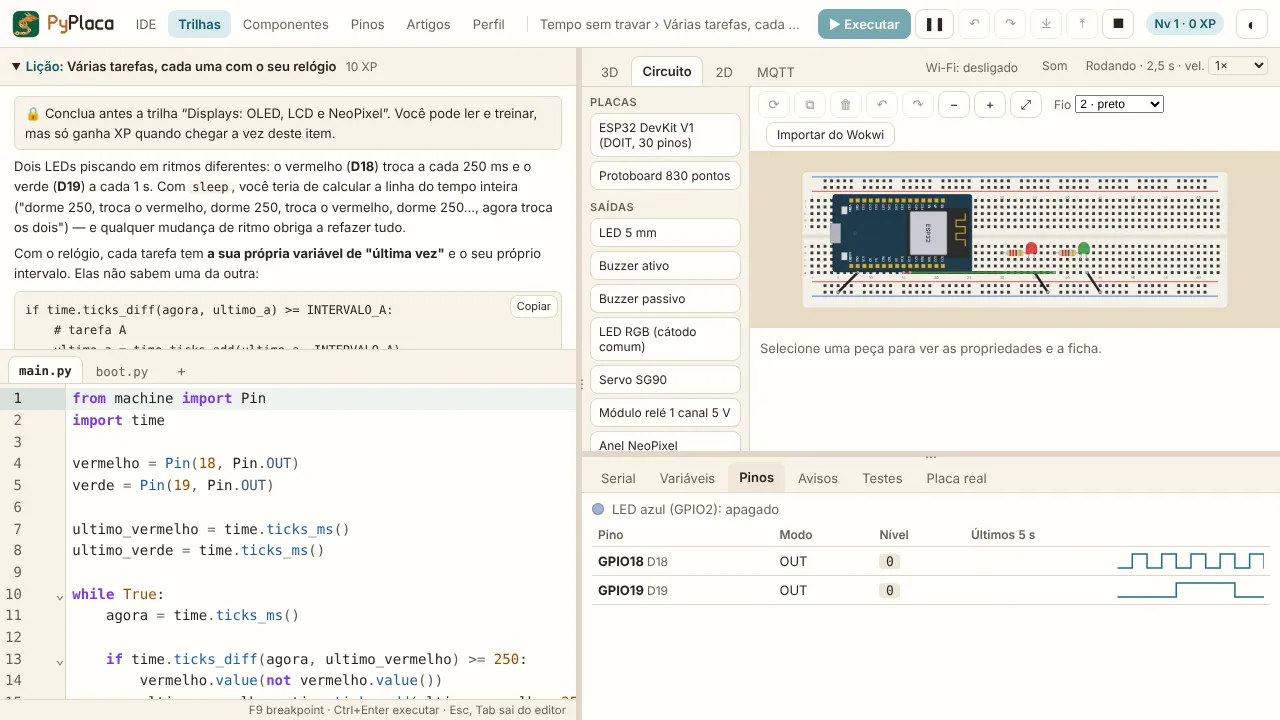
This style is called cooperative multitasking: each task does its part quickly and hands the turn back. The rule that holds everything up is that no task may freeze — no long sleep, no loop waiting for something to happen. One slow task delays all of them: a DHT22 measure() takes about 272 ms, and during that time no LED toggles. That is why slow tasks should be rare and the fast ones, short.
machine.Timer: the clock that calls you
With ticks_diff, it is the program that asks "is it time yet?". With a Timer, the logic is inverted: you say how often and which function to call, and the ESP32 calls it by itself.
from machine import Pin, Timer
import time

led = Pin(2, Pin.OUT)
segundos = 0
mudou = False

def a_cada_segundo(t):
    global segundos, mudou
    led.value(not led.value())    # quick thing: toggle the LED
    segundos += 1
    mudou = True                  # the rest is left to the main program

relogio = Timer(0)
relogio.init(period=1000, mode=Timer.PERIODIC, callback=a_cada_segundo)

while True:                       # keeps the program alive
    if mudou:
        mudou = False
        print('elapsed', segundos, 's')
        if segundos >= 10:
            break
    time.sleep_ms(10)
relogio.deinit() # turns the Timer off before finishingThe arguments of init:
period: the interval in milliseconds (there is alsofreq, in hertz);mode:Timer.PERIODICrepeats forever;Timer.ONE_SHOTfires once, like an alarm clock;callback: the function, which receives the Timer itself as an argument.
In the ESP32's MicroPython, these arguments always go by name. Timer(0, 1000) does not work: it gives TypeError: extra positional arguments given. And deinit() turns the Timer off.
Which Timer numbers exist
The ESP32 has 4 hardware timers: Timer(0) to Timer(3), and each number always returns the same object. Timer(4) gives ValueError: Timer(4) doesn't exist, there are only 4 hardware timers. A negative number, like Timer(-1), creates a virtual timer, made in software by the ESP32's system; each call creates a new one, and there is no limit of four. For most classroom projects, the four hardware ones are plenty.
A curiosity of v1.29.0 that the simulator reproduces: the print of a periodic Timer shows mode=ONE_SHOT, because that version's C code swaps the two names when printing. The Timer works correctly; only the text comes out swapped. It is the kind of detail that shows why the simulator copies the board's behavior instead of "doing what seems right".
Short callback: why
The Timer's callback is served the same way as Pin.irq's: the notice goes into a queue and the function runs right afterward, between one instruction and another of the main program or during a sleep. While the callback runs, the main program waits. And the queue has 8 slots: if notices arrive faster than the callbacks finish, the queue fills up and notices get lost — your clock "skips" seconds without you knowing.
Hence the golden rule: in the callback, only what is quick — toggling a pin, adding to a counter, raising a flag (mudou = True). Whatever takes long — print, drawing on the OLED, reading the DHT22, publishing to MQTT — stays in the main loop, which watches the flag. Since the function changes outside variables, it needs global. The ESP32's MicroPython does not even accept "hard" timers (hard=True gives ValueError: hard Timers are not implemented): every callback is of this scheduled kind.
Keep the program alive
On the real board, a hardware Timer can keep calling the callback after main.py ends, while the board is at the REPL (this is a behavior that is still to be checked on a lab board). In the simulator, it does not: the callbacks only run while the program runs. That is why the examples keep a loop alive at the end. If the program ends with a Timer on, the Warnings tab shows timer-apos-fim, reminding you that the behavior depends on the board.
Timer or ticks?
Both techniques solve the same problem, and the choice is about style and precision:
ticks_ms/ticks_diff | machine.Timer | |
|---|---|---|
| Who decides the time | the loop asks | the board calls |
| Precision | depends on the loop's pause (~10 ms) | the alarm happens on time; the callback runs at the next safe point |
| How many tasks | as many as you want | 4 hardware (plus the virtual ones) |
| Heavy work | directly in the loop | only in the loop, driven by flags |
| Debugging | easy: everything is sequential | harder: the function runs "from outside" |
To start with, ticks is simpler to understand and debug. The Timer shines when the time must be exact and the main loop has variable work.
The AI that remembers your life and lives on your computer
- Long-term memory with the source of every answer
- Works offline: your data stays on your PC
- Reads PDFs, slides, photos and meeting recordings
Essential plan free forever
State machine: organizing the program
A traffic light, a washing machine, an elevator: all spend their time in a state (green, rinsing, going up) and change state when something happens (time ran out, the door closed, someone pressed the button). This way of thinking is called a state machine, and it is what keeps board programs organized as they grow.
There are three ingredients:
- states: what the system is doing right now. A variable holds the current state;
- events: what can happen — a press, time that has passed, a sensor that changed;
- transitions: in each state, which event leads to which state.
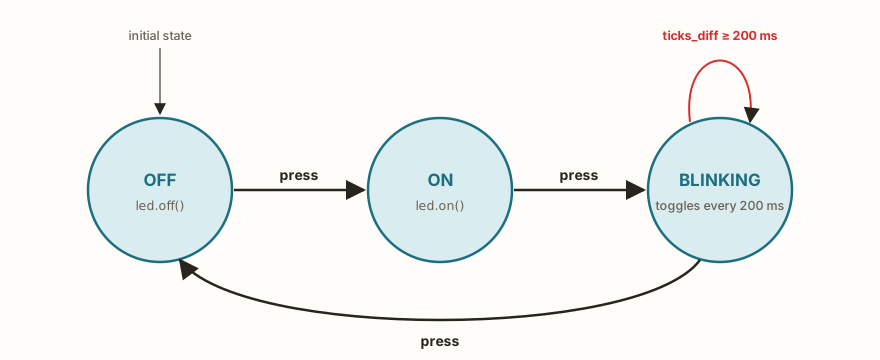
sleep.The following example has three states. Each button press leads to the next one: the LED off, on, blinking and off again.
from machine import Pin
import time

led = Pin(18, Pin.OUT)
botao = Pin(4, Pin.IN, Pin.PULL_UP)

estado = 'OFF'
anterior = 1
ultimo = time.ticks_ms()
print(estado)

while True:
    agora = time.ticks_ms()
    atual = botao.value()
    apertou = anterior == 1 and atual == 0     # the "press" event
    anterior = atual

    if estado == 'OFF':
        led.off()
        if apertou:
            estado = 'ON'
            print(estado)
    elif estado == 'ON':
        led.on()
        if apertou:
            estado = 'BLINKING'
            ultimo = agora
            print(estado)
    elif estado == 'BLINKING':
        if time.ticks_diff(agora, ultimo) >= 200:
            led.value(not led.value())
            ultimo = time.ticks_add(ultimo, 200)
        if apertou:
            estado = 'OFF'
            print(estado)

time.sleep_ms(10)The loop always has the same shape, and that is what is worth learning:
- read the inputs once and work out the events (
apertou); - do what the current state dictates — one
if/elifblock per state; - switch state when an event asks for it, noting the time if the new state has a scheduled time;
- short pause and back around.
No state waits stopped. BLINKING blinks with ticks_diff, so the button keeps being read every 10 ms and the press that turns it off is handled right away.
States with a scheduled time
Many states last a fixed time: a traffic light's yellow, a washing machine's rinse. The pattern is to note when the state began and check on every pass:
if estado == 'AMARELO':
    if time.ticks_diff(agora, inicio) >= 1000:   # 1 s on yellow
        estado = 'VERMELHO'
inicio = agoraWith this, a complete traffic light with a pedestrian button — which needs to handle the button at any moment, even in the middle of the green — becomes a short, readable program, without a single long sleep.
Why text for states
The example's states are strings ('OFF', 'ON'). Numbers would take less memory, but strings make print and the simulator's Variables tab self-explanatory: you can pause the program and see which state it is in. If memory gets tight in a big project, MicroPython offers const() in the micropython module to create named integer constants.
Common mistakes when giving up sleep
Swapping sleep for the clock tends to trip over the same points:
- comparing ticks with
>or subtracting: works for twelve days and fails afterward. Useticks_diff; - forgetting to update
ultimo: theifbecomes true on every pass and the task runs nonstop; - a task with a hidden
sleep: an "innocent" function that waits one second freezes all the others. Look forsleepand waitingwhileloops inside the tasks; - reading the button in several places: each reading can give a different value and the edge is lost. Read the inputs once at the start of the pass and use the variable;
- heavy work in the Timer callback: the callback gets long, the 8-slot queue fills and events vanish. Raise a flag and do the work in the loop;
- a program that ends with the Timer on: in the simulator, the callbacks stop; the timer-apos-fim warning reminds you of that.
The simulator's Pins tab is the best ally in this transition: it shows, on a time scale, when each pin changed — you can measure on screen whether the LED really toggles every 250 ms and whether the rhythm slips over time.
Putting it all together
The three tools combine. A typical end-of-course project — a thermometer with a display, alarm and button — looks like this:
- a state machine decides the mode (showing, alarm, configuring);
- each periodic task (reading the sensor every 2 s, redrawing the screen every 500 ms, blinking the alarm) has its own
ticks_diffblock; - if a task needs an exact time, a Timer raises a flag that the loop handles;
- edge events (presses, presence sensor) come from comparison with the previous reading or from a
Pin.irqwith debounce.
What none of these programs has is a long sleep in the middle. That is the change in mindset that separates the first examples from real projects.
In the Time without freezing track, each part of this article becomes a lesson with a ready-made circuit, and the challenges ask for exactly this: blinking and handling the button at the same time, two independent rhythms, a clock with a Timer and the traffic light with a pedestrian. The last article in the series, on Wi-Fi, HTTP and MQTT, shows why this way of programming is even more important when the board talks over the network.
To practice in PyPlaca
Tracks
Lessons
- Why sleep() freezes the program
- Is it time yet? ticks_ms and ticks_diff
- Several tasks, each with its own clock
- machine.Timer: the clock that calls you
- State machine